Guides / Back up an account
How to back up a GoHighLevel account
GoHighLevel has no one-click backup of a whole account, so you back it up in parts. Contacts, opportunities, form submissions and payments export as CSV files. A Snapshot copies the account’s setup, such as funnels, forms, pipelines and workflows, as a template. Workflows also export as readable JSON files with a browser extension. Conversation history has no bulk export.
Why there is no backup button
HighLevel has never shipped one. On its own ideas board, a request titled “Backup of Individual Accounts in HL” asked for a button to back up an entire account, contacts and forms and websites included, with a way to restore it after a mistake. When we read the board in August 2026 it had 115 votes and was marked Under Review.
Until that changes, a backup is something you assemble. The good news is that most of the pieces exist; they are just in different places, in different formats, and none of them is automatic.
What each part exports to
| Part of the account | How to save it | You get |
|---|---|---|
| Contacts | Contacts, Smart Lists, then Export | A CSV file |
| Opportunities | Opportunities menu, then Export | A CSV file |
| Form and survey submissions | The submissions page, then Export | A CSV file |
| Payment transactions and orders | Payments, then Export | A CSV file |
| Setup: funnels, forms, pipelines, fields, calendars, workflows | An account Snapshot (agency view) | A template stored in HighLevel, not a file |
| Workflows, readable and one by one | GHL Workflow Backup & Audit | A JSON file per workflow |
| Conversation history | No bulk export documented | Nothing |
The CSV exports: your data
Contacts are the part most people mean by “backup”, and the contact export (opens in a new tab) has limits worth knowing before you rely on it:
- It exports the columns visible in the table. Add the custom fields you care about with Manage Fields first, or they are left out.
- Notes longer than 255 characters can be cut short.
- It carries no automation history: past emails and SMS logs stay behind.
- Only admins can download it, from Bulk Actions, and the file is kept there for 30 days.
The same kind of CSV export exists for opportunities (opens in a new tab), for form and survey submissions (opens in a new tab), and for payment transactions (opens in a new tab) and orders. Run them together, so the files describe the account at the same moment.
The Snapshot: your setup
An agency can capture a sub-account as a Snapshot (opens in a new tab): workflows and triggers, funnels and websites, forms, pipelines, custom fields and values, calendars, tags, templates and more. It is the closest thing HighLevel has to an account backup, with two gaps:
- It holds setup, not data. Contacts, appointments, conversations, messages and integrations do not transfer.
- It is a template, not a record. You load it into a sub-account and choose, conflict by conflict, whether to override what is there or skip it. You cannot open it to see what a workflow said last Tuesday.
Take one before big changes anyway; it is the fastest way to rebuild the shape of an account. Snapshots vs real backups goes deeper on what it protects you from.
Workflows: the part nothing else saves as a file
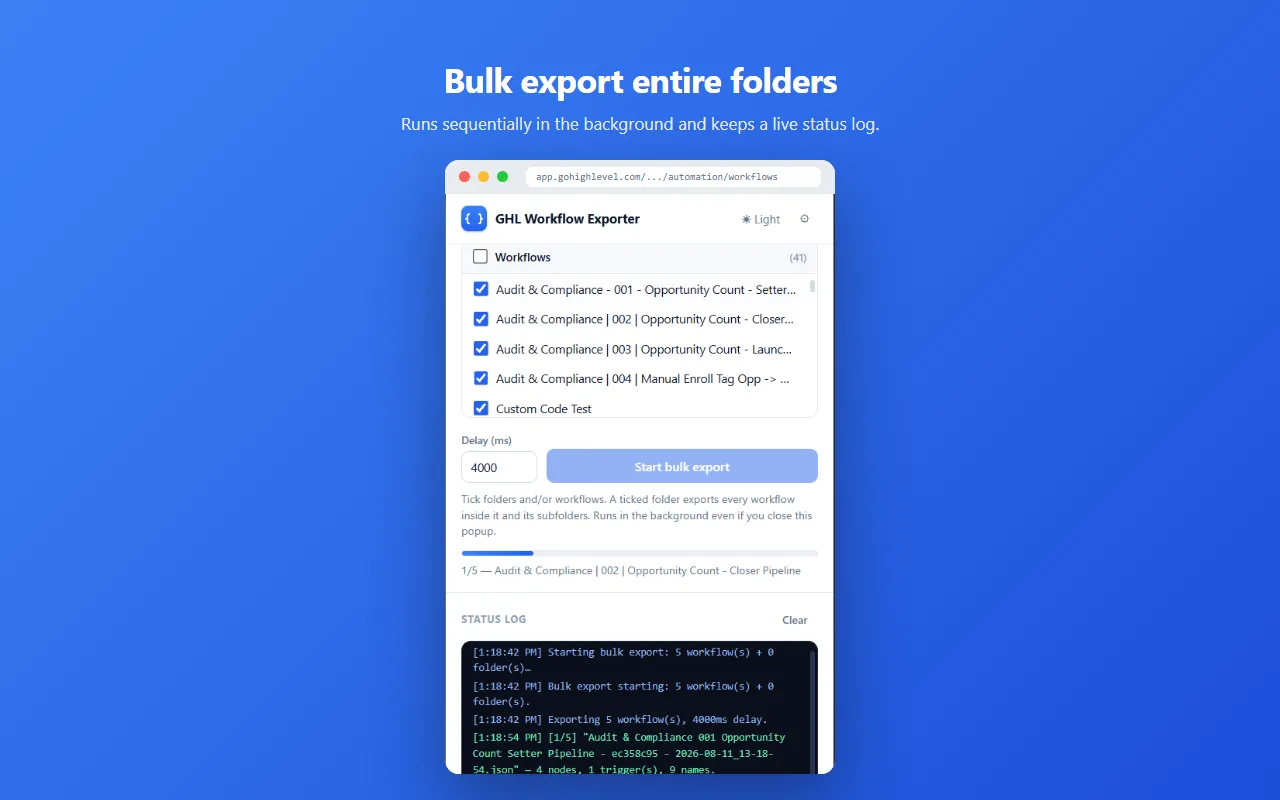
Workflows are where client accounts break, and HighLevel gives you no way to save one as a file or see its history. The GHL Workflow Backup & Audit extension exports the full step-tree of a workflow as JSON, or a whole folder of them in one run, named with the date and time so a folder of exports is a version history. Save them to your computer, your own Google Drive, or both.
The same files restore. Import one back to undo a bad edit, or restore a folder to rebuild a sub-account’s workflows; see how to import a workflow into GoHighLevel. The free tier covers 5 single exports, 1 bulk export and 5 single imports; after that it’s $19.99 once.
What you can’t back up
Conversation history is the gap. HighLevel’s help center documents no bulk export for it, contact exports leave it out, and Snapshots don’t carry it. Appointments are also missing from Snapshots. If message history matters for a client, decide with them up front how it is kept, before you need it.
A routine that holds up
- Before any significant change: export the workflows you are about to touch, and take a Snapshot if the change is broad.
- Monthly, for every client account: the CSV exports, a bulk export of the workflows, and a fresh Snapshot.
- Keep everything outside HighLevel, in dated folders: your own Drive or storage, not only the account you are protecting.
- Once a quarter, restore something into a test sub-account. A backup nobody has restored is a guess.
For inherited accounts, start with documenting the automations before you touch them.
FAQ
Does GoHighLevel have a backup feature?
Not for a whole account. Contacts, opportunities, form submissions and payments export as CSV files, a Snapshot copies the account’s setup as a template, and workflows export as JSON with a browser extension. Conversation history has no bulk export.
Is a GoHighLevel Snapshot a backup?
Not on its own. A Snapshot copies an account’s configuration, such as funnels, forms, pipelines and workflows, but not its contacts, conversations or appointments, and it is a template you load, not a record you can read or compare.
Can I back up GoHighLevel workflows?
Yes, as JSON files, with the GHL Workflow Backup & Audit Chrome extension, one at a time or a whole folder at once. GoHighLevel itself has no workflow export.
How often should I back up a GoHighLevel account?
Before every significant change, and on a schedule for accounts nobody is actively editing. Monthly is a sensible floor for client accounts.
Pricing and what the license adds are on the product page.
GHL Workflow Backup & Audit is an independent product. It is not affiliated with, endorsed by, or connected to GoHighLevel / LeadConnector.
More on this: Snapshots vs real backups · all guides