Guides / Import a workflow
How to import a workflow into GoHighLevel
GoHighLevel has no native way to import a single workflow. Its public API doesn’t accept workflow imports, and a Snapshot brings in a whole sub-account. To import one workflow, export it as JSON with the GHL Workflow Backup & Audit extension, open the target workflow in any sub-account you can reach, and import the file from the extension’s Import tab. The steps and triggers are rebuilt in place.
What GoHighLevel offers natively
There is no import button in the workflow builder, and the public API has no endpoint that accepts a workflow. The request has sat on GoHighLevel’s ideas board for years; here is why the gap exists.
Agency admins have one native option that comes close: Copy to Sub-Account, in the menu beside a workflow, sends one workflow to another sub-account they can access, as a draft. It isn’t an import from a file, so it can’t put back an earlier version, and it clears any reference it doesn’t carry. For moving a workflow inside one agency it is the quickest route; copying a workflow between sub-accounts compares it with the alternatives.
The other native tool is a Snapshot, an account template taken at agency level. Loading one into an existing sub-account lets you pick individual assets, and choose per conflict whether to override or skip; an override can’t be undone through the load. It needs agency access, and a Snapshot taken before the change you want to undo. Snapshots vs real backups covers the difference.
Import one workflow from JSON
You need the workflow as a file first. If you don’t have one yet, export it. The file can come from the same sub-account, to roll back a change, or from another one, to copy the workflow across.
- Install the extension from the Chrome Web Store (opens in a new tab). No account needed.
- In the target sub-account, open a new empty workflow, or the one you mean to replace. If that one is published, set it to Draft first.
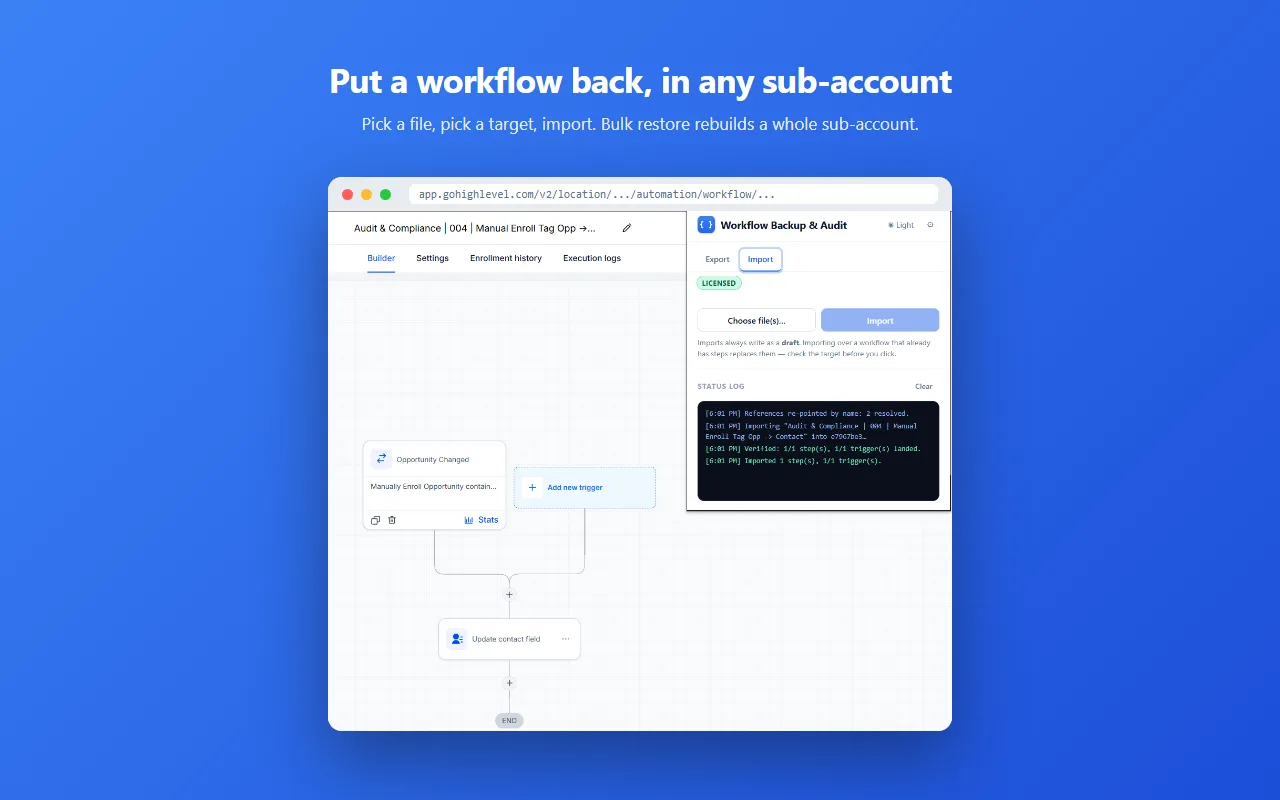
- Open the extension, go to the Import tab and choose the file. Each file is checked before anything is written: a broken one is rejected with the reason, a good one shows its name and how many steps and triggers it holds.
- Click Import. If the workflow already has steps, the extension asks you to confirm the overwrite, and offers to back up what is being overwritten. Tick it: the backup is saved to your computer, and to Google Drive if it’s connected, and re-importing it undoes the import.
- Read the status log: how many references were re-pointed, then how many steps and triggers were verified as landed. The builder reloads with the result.
The import goes through the same backend the builder itself uses, signed in as you, which is how it works where the public API doesn’t.
What happens to tags, pipelines and custom fields
A workflow points at things that belong to its sub-account: tags, pipelines, calendars, custom fields. Their IDs differ from one sub-account to the next, so the extension looks each one up by name in the target account and re-points it.
- Same name found: re-pointed automatically.
- Nothing by that name: the step keeps its old reference, and GoHighLevel shows its own warning on it. Re-point those by hand.
- Two with the same name: the first match is used, so check those steps.
Most of the hand work disappears if you create the missing tags, fields and pipelines in the target first, under the same names, and then import.
Before you import over a live workflow
The import replaces the target’s steps and triggers wholesale, and the extension can’t reverse that on its own. That is what the backup option in the confirmation is for: re-importing the backup is the undo. And GoHighLevel ignores draft status on this write, so a published target changes live, while contacts may be partway through it. The extension warns you before and after it does.
So tick the backup option, or export the target yourself first, and import into a new workflow or one set to Draft. Publish once the restored version checks out.
Rolling back a bad edit
GoHighLevel keeps one editable copy of each workflow and no history. If you export before you change anything, that file is your undo: open the workflow, import the earlier export over it, confirm the overwrite. Exports are named with the date and time, so a folder of them is a version history. An export cadence for client accounts keeps that history current.
Importing a whole folder (bulk restore)
Bulk restore takes a folder of exports and works through them in the sub-account you are viewing. Each file is matched to an existing workflow by ID, then by name. It does a dry run first, so the confirmation says how many workflows will be overwritten and how many created, and lists any that are live, before anything is written.
- Matched workflows are overwritten: their steps and triggers are replaced by the ones in the file.
- Files with no match become new drafts, named from the filename, in the folder you are viewing.
The same backup option is offered whenever existing workflows would be overwritten. Bulk restore needs a license and a Private Integration token, and a GoHighLevel tab of that sub-account kept open while it runs. Single imports need no token, and the first five need no license.
Ways to get a workflow into a sub-account
| Copy to Sub-Account | Rebuild by hand | Snapshot | JSON import | |
|---|---|---|---|---|
| Brings in | One workflow | Whatever you retype | Chosen assets from a template | One workflow, or a folder |
| Needs agency access | Agency admin | No | Yes | No |
| Steps and triggers exact | Yes; other references cleared | Only if retyped right | Yes | Yes, then verified |
| Time for one workflow | A minute or two | 10 to 90 minutes | 15 to 30 minutes | A few minutes, with checks |
| Undo | None | None | None | Re-import the backup or an earlier export |
Moving a workflow to another client’s sub-account is the most common reason to import one: copying a workflow between sub-accounts walks through it end to end.
FAQ
Can you import a workflow into GoHighLevel?
Not natively. GoHighLevel’s public API doesn’t accept workflow imports, and a Snapshot brings in a whole sub-account. The GHL Workflow Backup & Audit Chrome extension imports one exported workflow, or a folder of them, from JSON.
Does importing overwrite the workflow?
Yes. Importing over a workflow that already has steps replaces its steps and triggers, after you confirm. Tick the backup option in that prompt to keep a copy you can re-import. A published workflow is written live, so import into a new or draft one.
Will my tags, pipelines and custom fields carry over?
They are re-pointed by name in the target sub-account. Anything with no match there gets GoHighLevel’s own warning on that step and needs re-pointing by hand, so create missing tags, fields and pipelines under the same names first.
Is importing free?
The first 5 single imports are free, with no card. Bulk restore needs a license and a Private Integration token; the license is $19.99 once.
5 single exports, 1 bulk export and 5 single imports free. Pricing and what the license adds are on the product page.
GHL Workflow Backup & Audit is an independent product. It is not affiliated with, endorsed by, or connected to GoHighLevel / LeadConnector.
More on this: how to export a workflow · all guides